
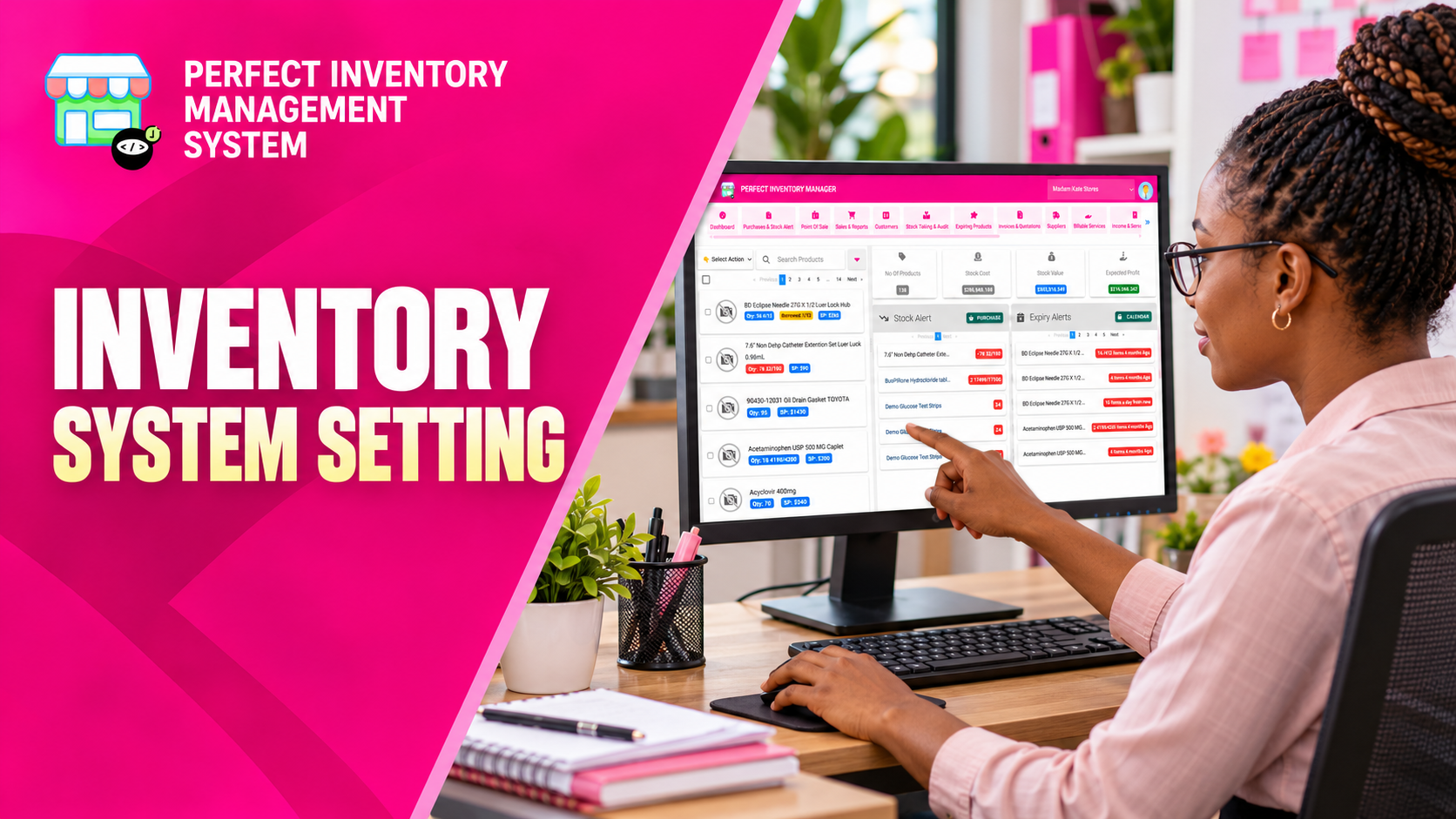
Configure inventory settings to match how your business presents prices, monitors expiry and produces receipts. A consistent setup helps staff interpret transactions and customer documents correctly.
Connect settings to everyday work
The Billing tab in system settings includes options used by inventory operations, such as expiry warning days, currency, tax percentages, tax identification and receipt barcode or QR code preferences. These choices affect the way staff review alerts and prepare transaction documents. Agree the required values with the people responsible for purchasing, sales and finance before changing a live configuration.
Step by step
Open the Billing settings
Review the existing values before editing. Identify which settings need adjustment for the way your business operates.
Set expiry warning days
Choose how far ahead the system should highlight expiring products. Allow enough time for the team to investigate and take action.
Review currency and tax details
Set the currency and applicable tax configuration, including the tax ID used on documents. Confirm the intended values with your business’s responsible person.
Check receipt presentation
Review receipt customisation and barcode or QR code options. Save the settings and inspect a relevant document to confirm the output is understandable.
Settings support the workflow you choose. They do not replace recording accurate batch expiry dates, prices and transaction details.
Review setup together with the staff who use it
Expiry alerts, currency, tax details and receipt content are shared decisions. Before changing them, check a recent purchase or customer document and agree the intended values with the people responsible for stock and billing.
Store defaults and staff permissions are related setup choices, but they belong in User Roles and Permissions. Product categories and units belong on the relevant item records. Keeping these responsibilities clear helps prevent a settings change from being used to mask inaccurate product data.
- After saving a receipt setting, inspect a newly generated document so staff see the result they expect.
Before you move on
- Review expiry alerts after changing their warning window.
- Check currency and tax details on a sample document.
- Restrict configuration changes to staff responsible for the setup.
Put the workflow into practice
Explore Perfect Inventory Management System and use these guides alongside your team’s daily work.
Open InventoryExplore the product