
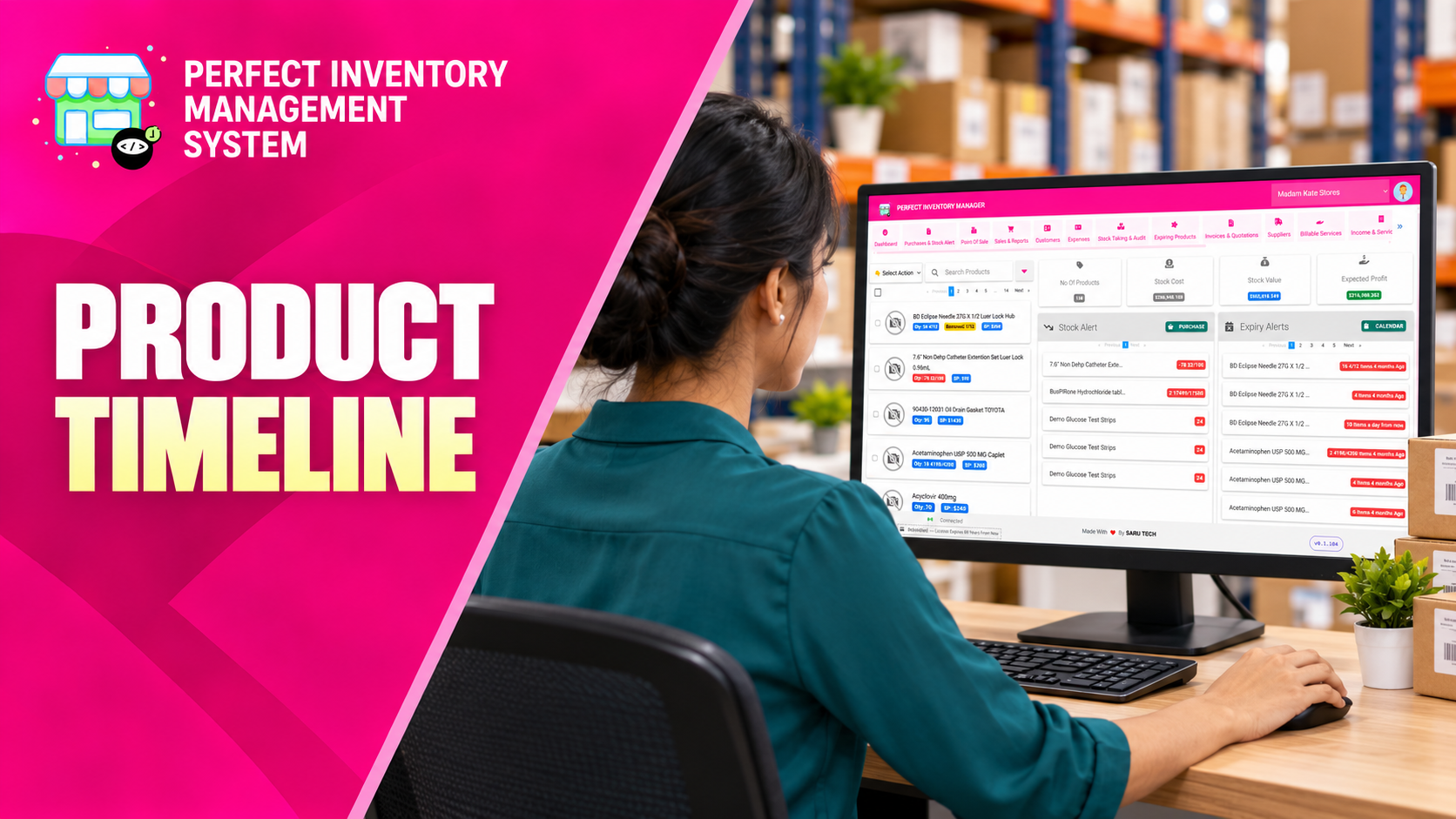
Follow the history of one product from creation through purchases, sales, dispensing, transfers and stock audits. The product timeline helps explain how the current record came to look the way it does.
Trace the event behind a change
The Timeline tab focuses on activity for the product you have opened. Month and year filters help you narrow the history, and transaction statuses help distinguish pending from completed records. Open a source transaction when you need details beyond the timeline summary. For a review across the whole store, use Stock Activity instead.
Step by step
Open the right product
Confirm the item and store, then choose its Timeline tab.
Select the period
Use the month and year filters to focus on the dates relevant to your question. Extend the range if the event may have happened earlier.
Read status and source details
Review the activity type and whether it is pending or completed. Open the related record to inspect the quantities and context.
Print a focused history
Use the print option when you need a record for review. Check the chosen period before printing so the history is not incomplete.
A pending record should not automatically be interpreted as a completed stock movement. Review its status and source document before drawing a conclusion.
Pair the event history with product knowledge
The timeline explains when recorded purchases, sales, dispensing, transfers and audits happened. Use the related record to answer what changed and who made the change. For current handling advice or a supplier specification, move to Product Comments and Files.
Keep these two kinds of information separate. A note can explain why an action was taken, but it does not create a purchase or quantity change. A timeline event documents the action that affected the record.
- When reviewing an audit adjustment, open the audit for its count and reason; then check attached product instructions if handling or disposal is relevant.
Before you move on
- Confirm the item and period.
- Distinguish transaction status from transaction type.
- Open the source record when investigating a discrepancy.
Put the workflow into practice
Explore Perfect Inventory Management System and use these guides alongside your team’s daily work.
Open InventoryExplore the product