
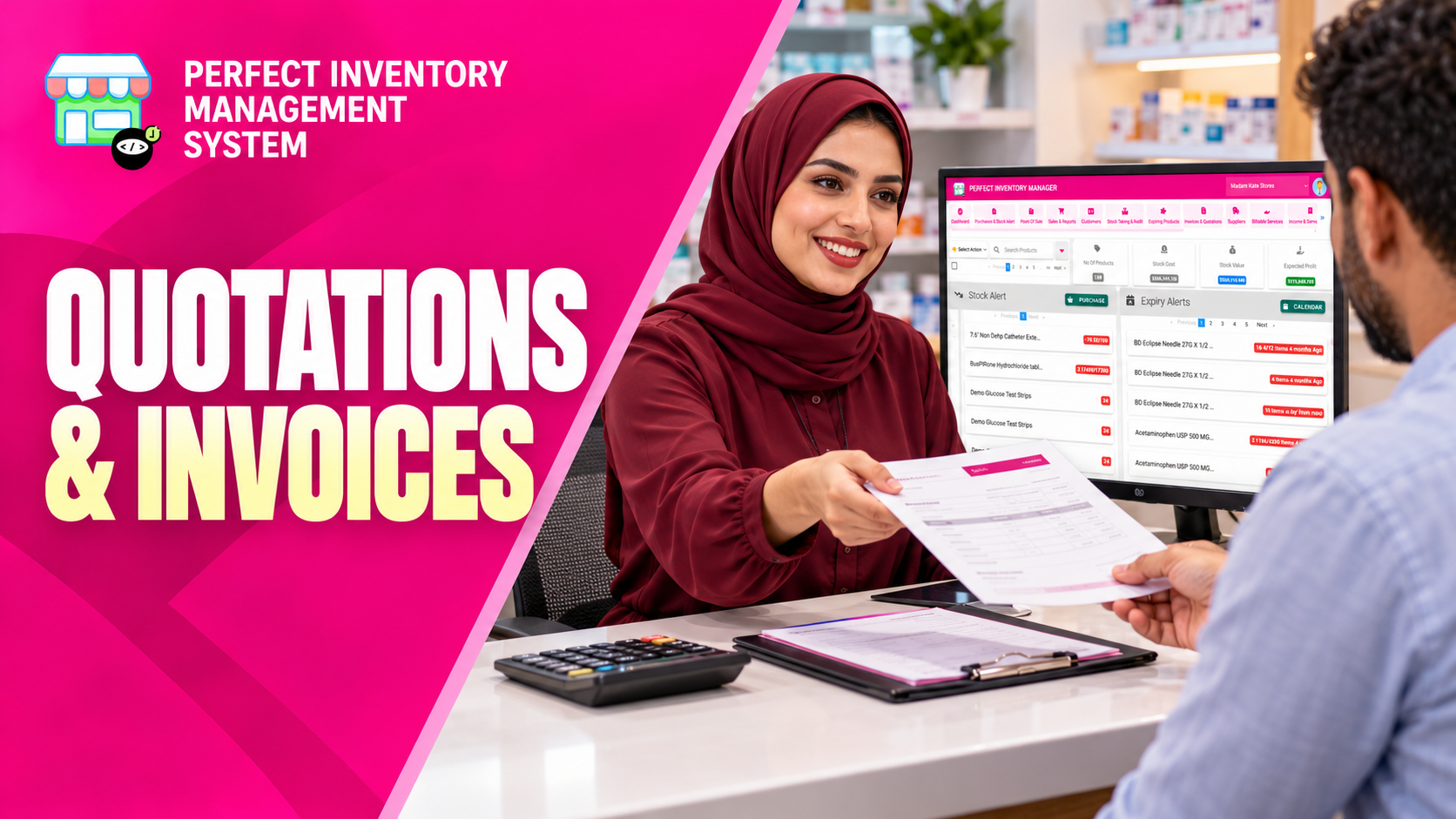
Prepare customer quotations, keep the offer details together and create an invoice when the quote is accepted. Linked records make it easier to follow an estimate through to the next stage of the transaction.
Build an offer that can be checked
A quotation contains customer information, products or services, quantities and prices. Discounts, taxes, payment details and notes help explain the proposed transaction. The quotation list supports searching and reviewing dates, customers, amounts and invoiced status. Creating an invoice from the quote keeps the two records connected, but creating that document should not be treated as evidence that payment has been received.
Step by step
Create the quotation
Choose New Quotation and select an existing customer or enter the required name and address details. Review the quotation identifier.
Add the offer lines
Select products or services, set quantities and review prices. Apply the appropriate fixed or percentage discount and tax settings.
Save and share the document
Add payment information or a link and any explanatory notes. Save, print or email the quotation as needed. Use duplication when preparing a similar offer, then check the copied details.
Create the linked invoice
Open the accepted quotation and choose Create Invoice. Review the appropriate Income or Expense mode and the resulting details. Use View Quotation and View Invoice to move between the records.
Review copied quotations before reuse. Customer details, prices and discounts may have changed since the original offer.
Keep customers, services and bills connected
A customer record can help you reuse contact details and review earlier quotations, sales or borrowing activity. Select the intended customer before saving a quotation, especially when names are similar. Include services as separate lines when the offer covers work rather than physical stock; a service charge does not represent units available on a shelf.
For an accepted quotation, create the linked invoice and review the resulting lines, discounts and tax. Keep document creation, payment and product fulfilment distinct: review each record's actual status before treating it as complete. Use the relevant billing view to find previous invoices or income records when following up on an outstanding amount.
- Example: a quotation for 10 chairs plus a delivery service should show two clear lines. The chairs have a quantity to fulfil; the delivery service is a charge rather than another inventory item.
- Open the customer record when you need the history behind an enquiry, then return to the quotation or invoice for the exact transaction.
Before you move on
- Check the customer and quantities.
- Confirm discount and tax treatment in the displayed totals.
- Verify the linked invoice rather than assuming the quotation is already invoiced.
Put the workflow into practice
Explore Perfect Inventory Management System and use these guides alongside your team’s daily work.
Open InventoryExplore the product