
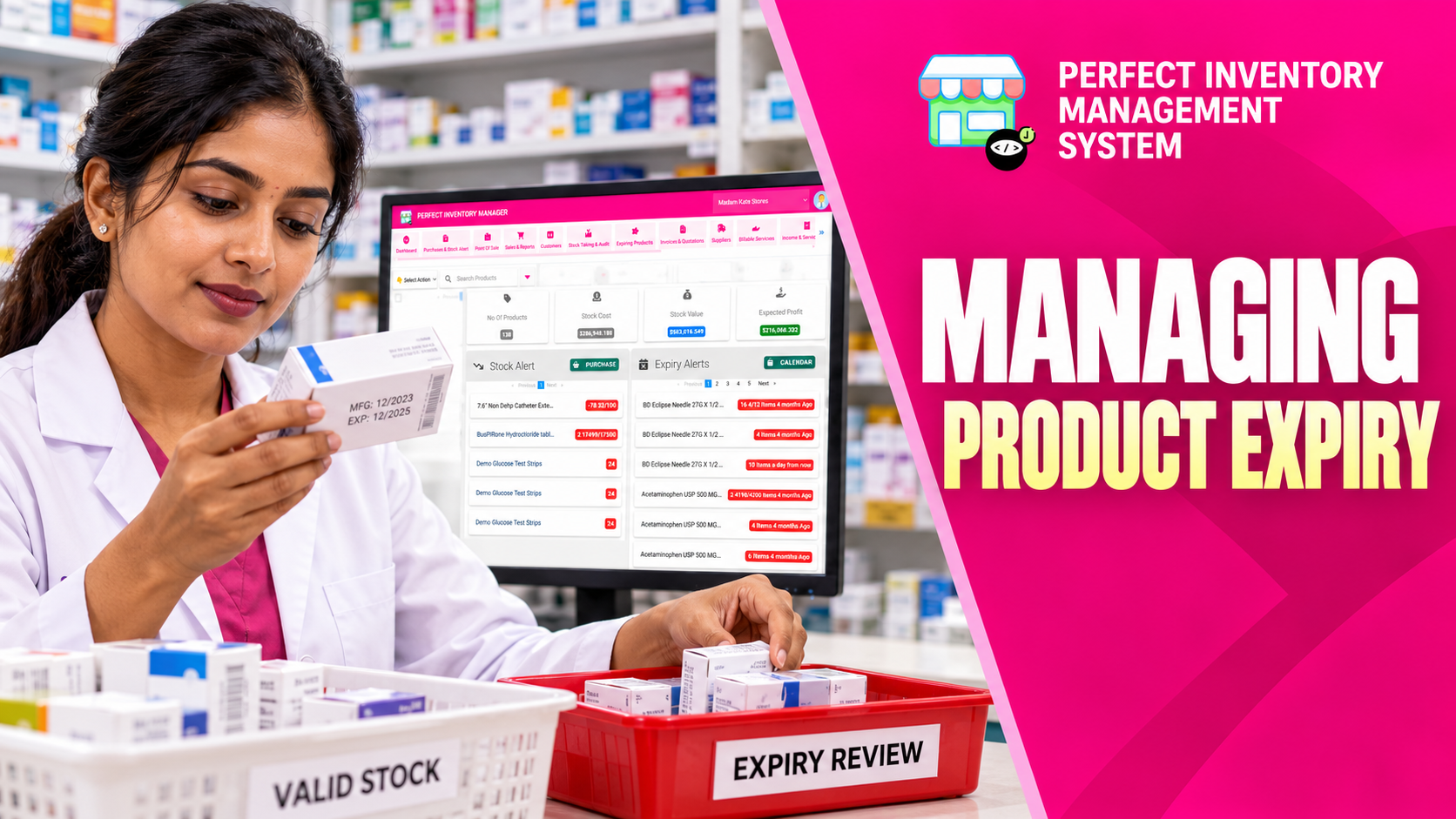
Track expiry at purchase-batch level so you can identify the stock that needs attention. Two deliveries of the same product may expire on different dates and should not be treated as one undifferentiated quantity.
Plan around the batch, not just the product name
The expiry calendar shows batches with their expiry dates and quantities, making upcoming issues easier to spot. Navigate the calendar to review the relevant weeks or return to today, then open the product for more detail. Dashboard expiry alerts provide another prompt, with the advance-warning period configured in settings. The information is only as reliable as the expiry dates entered when purchases are recorded.
Step by step
Record expiry on receipt
Enter the appropriate expiry date for each purchase batch. Check the physical packaging rather than copying a previous delivery’s date.
Review the calendar
Open the expiry view and examine batches around the dates you are planning for. Check both the product and quantity involved.
Investigate the product
Open the relevant details and compare available batches. Distinguish the approaching-expiry delivery from later stock.
Choose and record the response
Plan suitable discounts, supplier returns or disposal according to your business process. Record the resulting movement or adjustment so the stock figures reflect the action taken.
FIFO follows purchase order; it does not mean the earliest-expiring batch is always selected. Review expiry dates and choose a specific batch when the transaction requires it.
Use the alerts to decide what to inspect
Expiry alerts help you focus on batches nearing their recorded dates. An alert date depends on both the batch expiry entered at purchase and the warning period in system settings. Check the quantity and expiry of the specific delivery before deciding on a discount, supplier return or disposal.
The expiry calendar gives a dated view, while the dashboard gives a quick warning. A later delivery of the same product may remain usable for longer. If goods are removed or disposed of, record the stock movement or confirmed adjustment so the system matches the shelf.
- Review the warning period in Inventory System Settings if staff need more time to act.
Before you move on
- Check dates for each delivery.
- Set a useful advance-warning period.
- Record any disposal or quantity correction after the physical action.
Put the workflow into practice
Explore Perfect Inventory Management System and use these guides alongside your team’s daily work.
Open InventoryExplore the product