
🔁 Transfer Item
The Transfer function allows you to move products between two stores or departments while preserving traceability. It's a core part of maintaining accurate distributed stock records in organizations with multiple storage points.
🔄 How Transfers Work
When you initiate a transfer:
- The source store's stock is reduced
- The destination store's stock is increased
- A transfer record is created with full audit trail
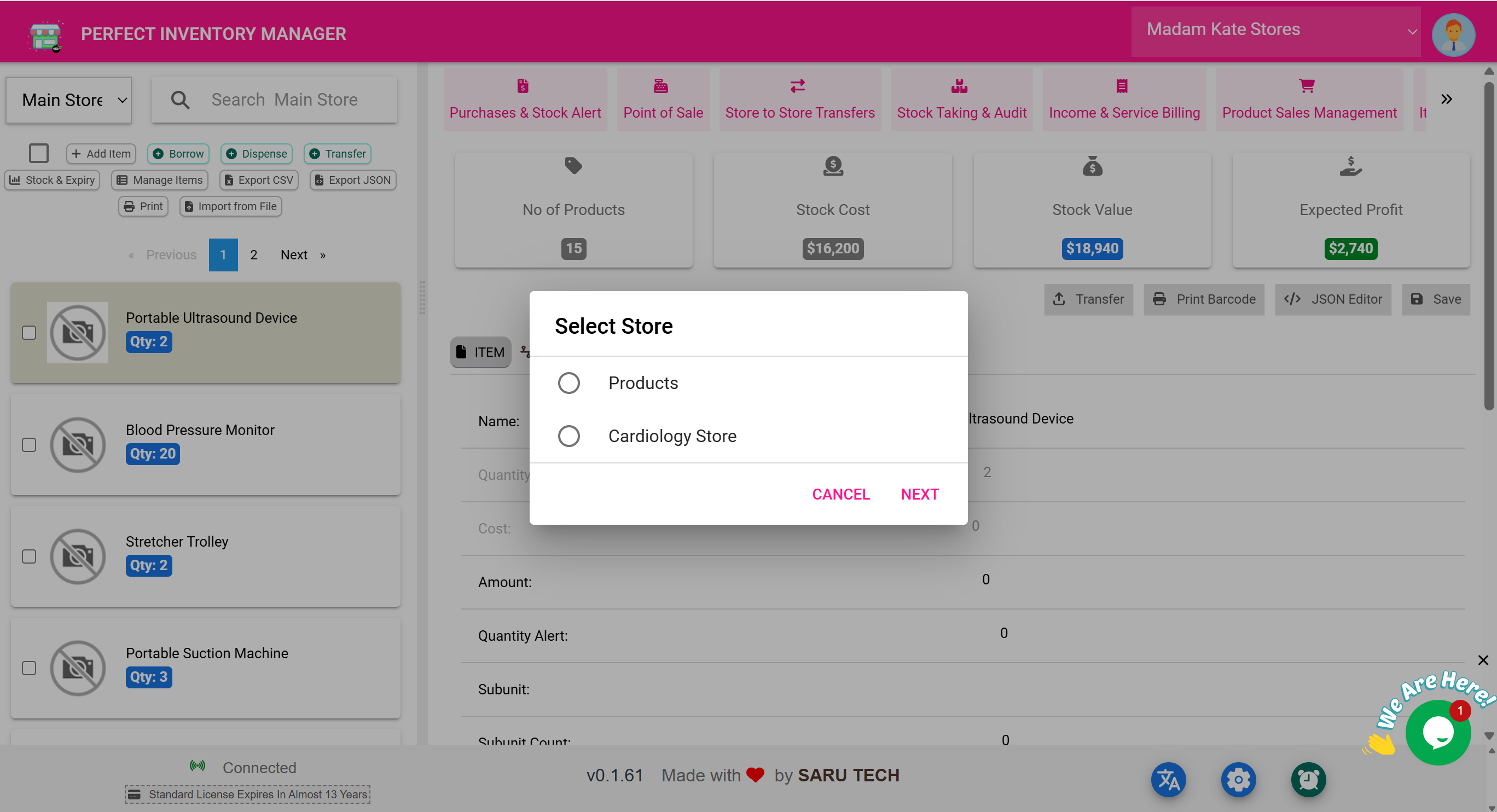
🧰 Example Workflow: Moving Gloves to ER Store
- Click the Transfer button
- Select the item (e.g., Sterile Gloves )
- Choose the destination store : ER Store
-
Enter quantity:
100 - Click Transfer to complete
This updates both store inventories and logs the movement for future review.
🏪 Why Use Transfers?
- Redistribute overstocked items
- Support demand surges in specific units (e.g., ICU)
- Centralize high-value items and issue only as needed
🗃️ Where to Track Transfers
After transferring, the record appears in the Store-to-Store Transfers page, where you can:
- Filter by date or status (Pending, Shipped, Received)
- Print transfer slips
- Reconcile deliveries
🔐 Permissions
-
Only users with
can_transferpermissions will see this button - Admins and inventory officers can typically perform transfers
- Transfer logs are visible to destination store staff
🧠 Best Practices
- Always double-check source and destination before submitting
- Use clear notes or reasons during the transfer for future reference
- Encourage receiving departments to confirm received quantities
- Print or export weekly transfer reports for compliance