
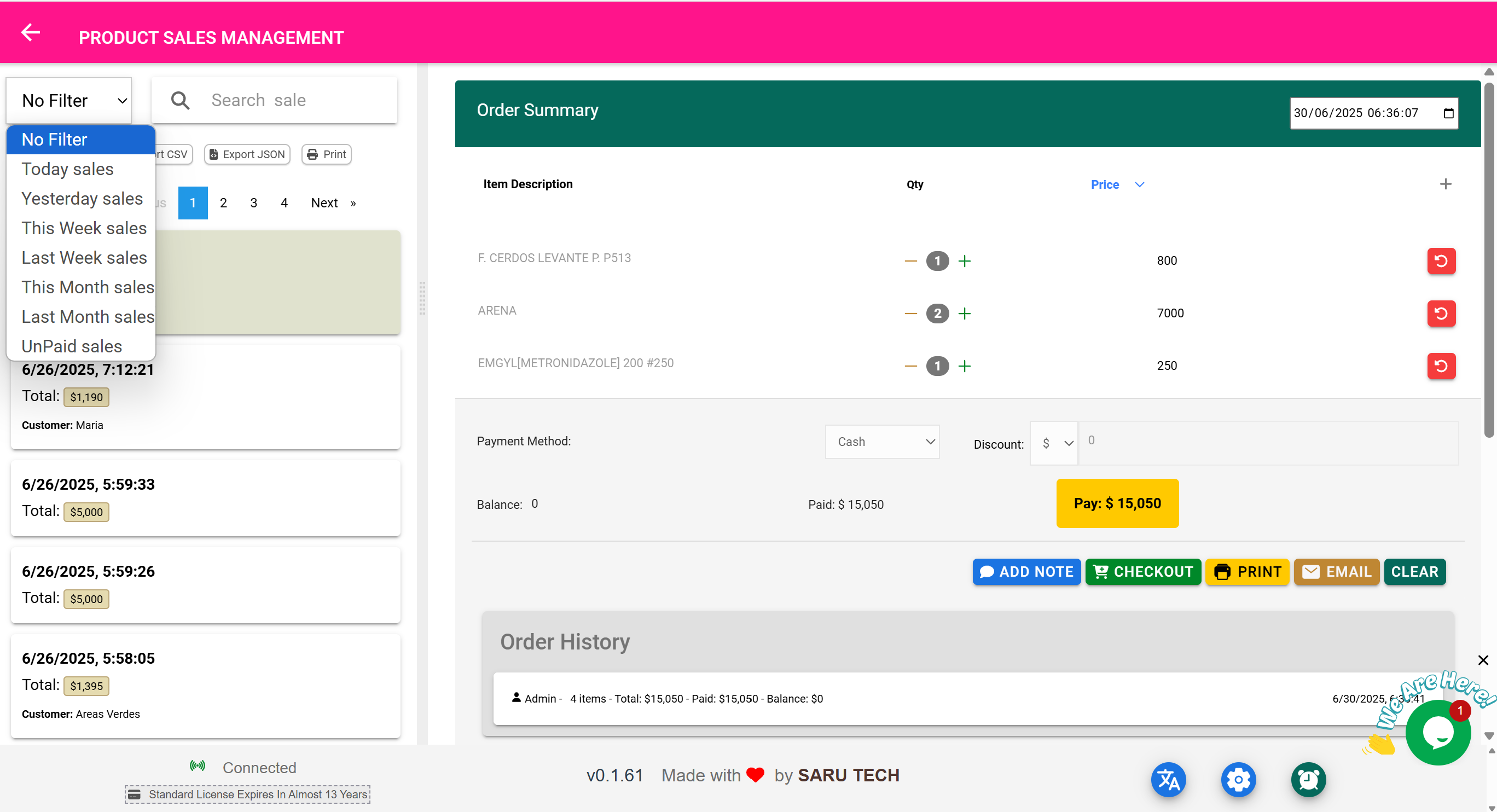
💵 Income & Service Billing Page
“View and manage all non-product billing transactions — like service charges or miscellaneous income.”
⚠️ Important Reminder
This page is not used to create new bills .
All actual billing (for services, income, or payments) must be done via the POS Page .
This page is solely for:
- Reviewing previously recorded income or service charges
- Filtering and searching bills
- Viewing payment status (e.g., Paid, Unpaid, Partial)
- Exporting and printing for accounting or audit purposes
- Following up on outstanding balances
🎯 What Qualifies as “Income or Service Billing”?
- Charges for consultations or clinical services
- Utility refunds, donations, or miscellaneous income
- Manual entries for services billed outside product sales
🔍 Filters and Search Options
The dropdown filter enhances your ability to analyze and focus on specific records:
- Item Filter (Default): Filter records by a specific service or income type. Selecting this activates an autocomplete search box, and the summary panel recalculates to show only data for that item.
- Customer Filter: Narrow the view to show all bills related to a single customer. Useful for following up on balances or providing detailed statements.
- Status Filter: Show only Paid, Unpaid, or Partially Paid records.
- Date Filter: Quickly filter by Today, This Week, Last Month, or set a custom date range.
✅ The summary chart and list below adjust in real-time to reflect applied filters.
🔍 Key Features of This Page
| Feature | Purpose |
|---|---|
| 🔎 Search Bar | Find bills by customer name, date, service type, or status |
| 📅 Date Filter | Quickly filter by Today, This Week, Last Month, etc. |
| 💳 Unpaid Filter | Show only unpaid or partially paid bills |
| 📊 Bill Summary | View bill details like amount, balance, customer, service name |
| 📄 View Bill Details | Open the detailed bill for payments, refund, or return tracking |
| 📤 Export CSV / JSON | Download records for accounting |
| Print the bill or summary for filing or customer copy |
📊 Summary Charts
“A live dashboard showing total income, unpaid balances, and payment trends.”
Whenever you aren’t viewing a specific bill, the system shows a summary chart on the right-hand side of the screen. This summary gives a quick snapshot of your financial data for the selected category (in this case, income).
It’s part of the shared component called page-summary-inventory , and it provides live data summaries for the currently active mode — in this case, income mode.
📊 What the Summary Chart Shows
| Metric | Description |
|---|---|
| Total Records | The number of income entries created in the selected date range |
| Total Amount | Total value of all service charges and income logged |
| Total Paid | How much has actually been received from customers |
| Unpaid Balance | Total outstanding amount still owed across all income records |
| Date Filter | Options like “Today,” “This Month,” “Last Month” to adjust the view |
| Search Bar | Lets you narrow down records for the summary (e.g., by patient or service) |
🧠 Best Practices
- Use the chart before monthly close to catch unpaid records
- Filter by date, customer, or service to identify trends
- Export filtered data for insurance reconciliation or reporting
- Always check the unpaid balance column for early detection