
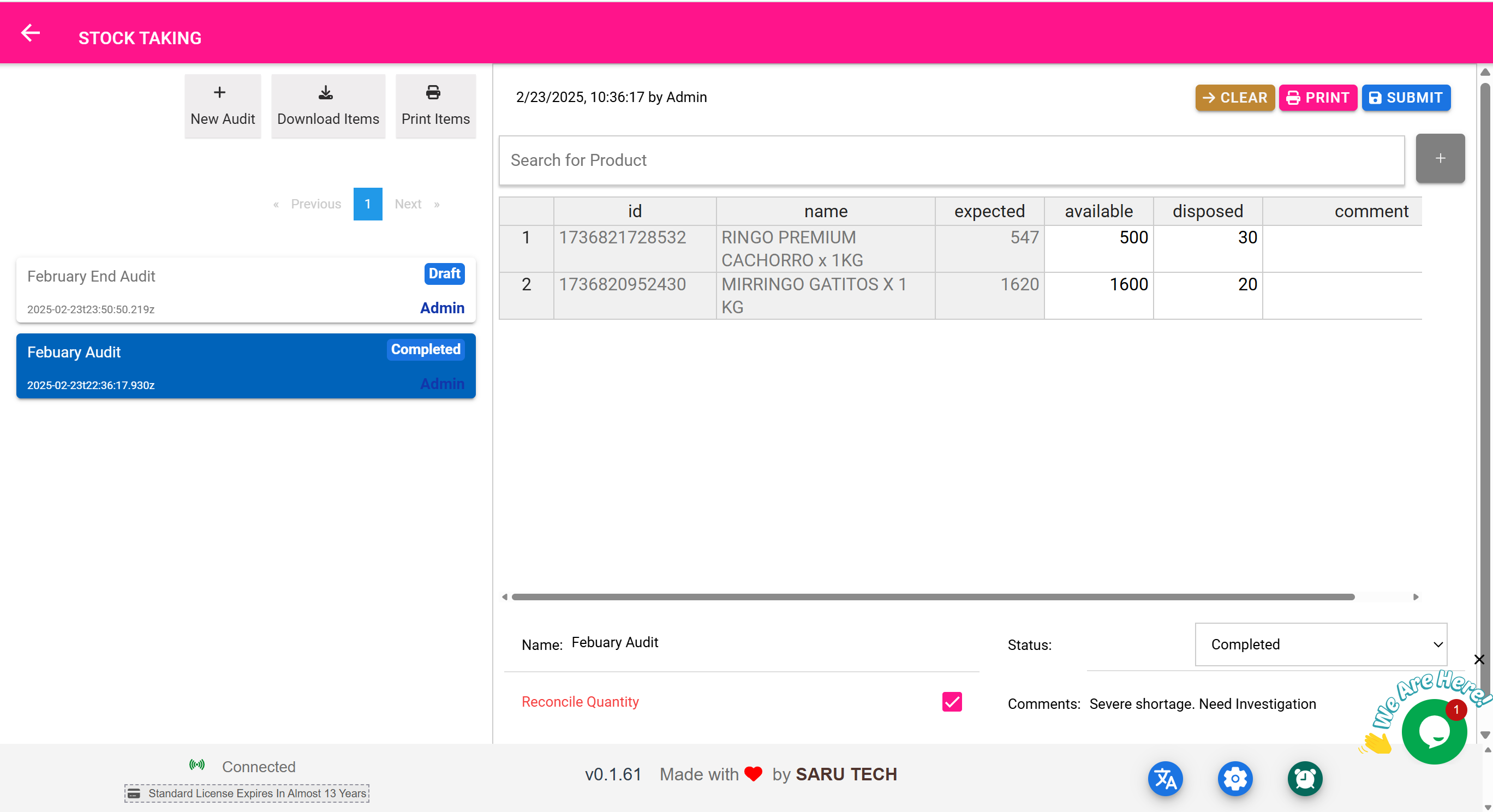
📋 Stock Taking & Audit Page
“Keep your inventory accurate with regular audits.”
🎯 Purpose of This Page
This page is designed for performing and recording stock audits, also known as stock taking. Unlike transfers or sales, audits are internal reviews — you’re comparing the system’s expected quantity with the actual quantity counted on the shelf.
Use this page to:
- Create and manage stock audit records
- Reconcile discrepancies between physical and system quantities
- Record reasons for differences (e.g., expired, disposed, miscounted)
- Track who performed the audit, when, and for what store
- Export or print results for record-keeping
📌 Who Uses This Page?
- Inventory Officers
- Store Managers
- Pharmacy Heads
- Auditors or Compliance Teams
✅ It helps maintain accuracy, transparency, and accountability in stock management.
🔍 Filters and Search Options
The dropdown filters make it easier to manage and review audits for specific contexts:
- Item Filter (Default): Focus audits on a specific product. Selecting this activates an autocomplete search box and recalculates summary data for that item only.
- Customer Filter: (Optional) Use this when reconciling stock related to customer-linked transactions, like patient-specific audits in clinics.
- Date Filter: Limit records to audits performed Today, This Week, Last Month, or custom ranges.
- Status Filter: View only Draft or Completed audits.
✅ Summary panels and item lists update dynamically with these filters.
🛠️ What You Can Do Here
| Feature | What It Does |
|---|---|
| ➕ New Audit | Create a new stock audit sheet |
| ⬇️ Download Items | Export all products into a printable or Excel-friendly format |
| 🖨️ Print Audit Sheet | Print a clean copy for manual physical counting |
| 🔍 Search or Add Product | Look up products to include in the audit |
| ✏️ Enter Actual Counts | Input counted quantity, disposed quantity, or comments |
| ☑️ Reconcile Checkbox | Automatically adjust system quantity to match audit count (if needed) |
| 📤 Submit Audit | Save and lock the audit so it cannot be edited |
| 🗑️ Delete Draft Audit | Remove incomplete or test audits |
🧰 Example Workflow: Conducting a Pharmacy Audit
- Go to Stock Taking & Audit Page
- Click “New Audit”
- Enter a name like: “Pharmacy Store – May Audit”
- Click Download Items to print a hard copy
- Walk through the store and manually count each product
- Return to the app and:
- Search each product
- Enter:
- Actual Quantity
- Disposed Items (e.g., expired syrups)
- Any comments
- Tick the “Reconcile” box if you want the system to automatically update the inventory based on your count
- Click Submit
✅ The audit is now saved, and all updates will be reflected in item timelines.
🧮 Fields Explained
| Field | Meaning |
|---|---|
| Expected | What the system thinks is in stock |
| Available | What you physically counted |
| Disposed | Quantity removed due to expiry, damage, or waste |
| Comment | Reason for discrepancies or notes for future reference |
| Status | Draft or Completed |
| Reconciled | If true, the system updates inventory to match what was counted |
🧠 Best Practices
- Always keep the audit in “Draft” until you’ve confirmed all data
- Use Dispose to track waste or losses separately — this feeds into loss/profit reports
- Include comments like “Found extra unit on side shelf” or “Expired batch discarded”
- Use Pagination to manage audits with many products
📤 What Happens After Submission?
- The audit is saved as Completed
- It’s no longer editable
- All reconciled quantities are updated in real-time inventory
- Item timelines reflect the stock adjustment
- You can print or export the audit for signatures, reviews, or archiving
🖨️ Optional Printout
After auditing:
- Print the result sheet
- Add your signature and that of the supervising officer
- File it physically or scan and attach to the audit record via the Files tab (in item view)